WiLogUtl.exe is very handy to interpret the Windows Installer log files. It assists to analyze Windows Installer installation log file and suggests solutions to the errors found in those log files. Please note that this does not display or high-light non-critical errors.
All you need to do is Download Windows SDK and install "Debugging Tools for Windows" feature under "Developer Tools".
Laucnh WiLogUtl.exe from "C:\Program Files\Microsoft SDKs\Windows\v7.0A\bin" and open any of you MSI*****.LOG file for analysis.
Here is a good article on different options to enable logging.
Showing posts with label Wise. Show all posts
Showing posts with label Wise. Show all posts
September 3, 2012


July 24, 2012
Planning for a New Installer? Be ready with these Parameters..
Installer is NOT a last minute Surprise!
When you start with an all new Product or creating an ancillary kit or application for the existing product line, we may have to create a new installer for the deployment. With the Agile Methodology for development, at the end of each iteration, the product should be in a shippable state. Hence designing and developing the installer in parallel along with the product development would help us not only to have the product ready in a shippable state at the end of the iteration but also helps the QA to verify quickly.
· Application Name
· Application Description
· Application Version Number
· Company Name
· Support Information to be displayed in ARP Panel
a. Publisher Name, URL
b. Contact Name, URL
c. Support Phone Number
d. Read Me File, if any
e. Product Update URL
f. Comments, if any
· License Agreement, if any
· Hardware Requirements
· Default Installation directory
· Installation condition like
a. Supported Operating System
b. Supported Platform - 32-bit / 64-bit
c. Admin privilege required?
· Add / Remove programs entry required?
· Icon & Images
a. Product specific icon for ARP entry and installer output file?
b. Custom Images for Installer dialog and installer startup splash screen
b. Custom Images for Installer dialog and installer startup splash screen
c. Billboard (images run in background during installation) required?
· List the Pre-Requisite software checks (example .Net Framework 4.0 etc.,)
· Do you need to ship any Pre-Requisite software along with the installer? If yes, list them
· Do you need to ship any Pre-Requisite software along with the installer? If yes, list them
· Silent installation required?
· Globalization / Localization support? If yes, list the supported languages
· Shortcuts? If yes, provide the name and physical path (relative to the installation directory) for all the proposed shortcuts
· Do you bundle any merge module?
· Answer these questions for succeeding release of the product
a. Detect previous version?
b. Do we need to support co-existence with the previous versions of should we upgrade?
c. Upgrade should me a Patch or Minor upgrade or Major Upgrade.
[Note: It’s a good practice to plan the release artifacts in advance.]
· Feature Details
o Feature List with name and description
o Feature / Component / File association
o Optional or Mandatory feature
· UI sequence for installation
o Custom dialog, if any for user input
· Post installation configuration like..
o Create a Service
o Create a Website / Virtual directory / App Pool
o Restart IIS
o Update config files
o Register a DLL
o Create a database / Run a query / attacha a database
· UI sequence for maintenance mode (remove, repair or modify)
o Custom dialog, if any for user input - modify option
· Pre or Post uninstallation configuration like..
o Delete a Service
o Delete Website / Virtual directory / App Pool
o Restart IIS
o Update config files
o unregister the DLL
o Remove the database / detach a database
· Mode of deployment
o Large scale deployment through SMS or Active Directory or Citrix Server
o Web Deployment
o Click Once Deployment
o Stand Alone Server / Client
With these inputs, Agile Team can define the scope of the installer and estimate all the associated tasks for Installer development as well as testing.
· Reboot required at the end of installation / uninstallation
· Windows Logo Guide lines Validation for the installer - Mandatory / Optional?
June 28, 2012
Custom Action Types - Simplified
The following table categorizes the basic types of custom actions
 |
| Custom Action Types |
May 25, 2010
Where is the ICON for Add/Remove shortcut is stored?
Most of the product owners prefers to use Custom / Product specific icons for Add / Remove Programs (ARP) entry instead of using the default InstallShield or Windows Installer icon. Though we have an option to specify the ARP icon while creating the installer, we always wonder where this icon is stored after installation. This article details about that.
Once the product is installed, the following registry key is created.
Once the product is installed, the following registry key is created.
- HKEY_CLASSES_ROOT\Installer\Products\0CBC24CEC944140453282975376B5482
ProductIcon - C:\WINDOWS\Installer\{EC42CBC0-449C-4041-3582-925773B64528}\ARPPRODUCTICON.exe
- The Custom ARP icon is stored in the form of ARPPRODUCTION.exe under C:\WINDOWS\Installer\<ProductGUID>. This is just a few kb file which has the Custom icon set for it. Please note that C:\WINDOWS\Installer is a hidden folder.
- Now you will wonder where does the key - 0CBC24CEC944140453282975376B5482 comes from. Being the developer you can easily conclude that this code is neither a Product Code nor a Package Code nor an Upgrade Code. There is a small trick involved in forming this code from Product Code and here is the steps to arrive the same
- Remove the curly braces and write the Product Code
EC42CBC0-449C-4041-3582-925773B64528 - Reverse each piece of the Product Code
0CBC24CE-C944-1404-5328-2975376B5482 - Remove the spaces and -'s between the above code and you will get
0CBC24CEC944140453282975376B5482This is used under HKEY_CLASSES_ROOT\Installer\Products.
December 15, 2009
When do you prefer Shared DLLs over Merge Modules?
Merge modules are similar in structure to a simplified Windows Installer, which helps to integrate shared code, files (DLLs / OCXs), resources, registry entries, and setup logic to applications as a single compound file.
Drawback of using downloadable Merge Modules while re-packaging: Most of the merge modules are present in their respective shared location, if not; it’s downloaded from the web. As the files integrated with the installer is from merge modules, it does not require isolation.
When you don’t find the proper network for the Share location on web during installation, then the application / installation fails to function. This is the main drawback of the Merge Modules. Shared DLL concept can be used to overcome this issue.
During the re-packaging process usually we don’t include the merge modules, that has to be downloaded during installation, in the WSI/MSI; this is to avoid the above mentioned network issues. The following screen shot shows how the merge modules will be excluded in the package:
Drawback of using downloadable Merge Modules while re-packaging: Most of the merge modules are present in their respective shared location, if not; it’s downloaded from the web. As the files integrated with the installer is from merge modules, it does not require isolation.
When you don’t find the proper network for the Share location on web during installation, then the application / installation fails to function. This is the main drawback of the Merge Modules. Shared DLL concept can be used to overcome this issue.
During the re-packaging process usually we don’t include the merge modules, that has to be downloaded during installation, in the WSI/MSI; this is to avoid the above mentioned network issues. The following screen shot shows how the merge modules will be excluded in the package:

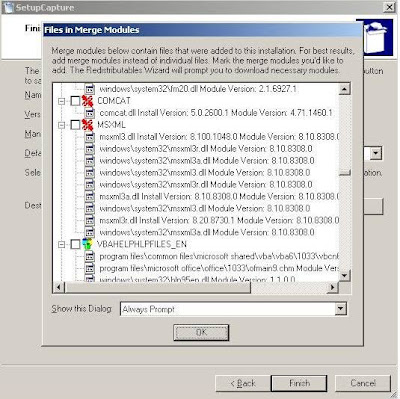
In this case the DLL/ OCX files will be included directly within the WSI/ MSI.
Shared DLLs:All the DLLs captured in the WSI/ MSI will be a shared DLL. When a DLL is already present in the machine and if we install the application, the DLL of the same version increments its DLL counter. Since the DLLs from the MSI are shared DLLs, any new application that would be installed on the same machine in future will increment the corresponding DLL count. All the Shared DLL counts can be viewed from the following registry location:
HKEY_LOCAL_MACHINE\SOFTWARE\Microsoft\Windows\CurrentVersion\SharedDlls When there is a DLL conflict found using Wise Conflict Manager, we go for Isolation. This is named as DLL Redirection.
What is DLL Redirection?
Since an executable imports API functions from DLL files, DLL redirection allows us to tell a program that the DLLs it needs are located in a different directory than the originals; in this way we can create a DLL with the same name as the original, which exports the same function names as the original, but each function can contain the code of developer’s choice.
There are two ways to achieve DLL redirection;
- “dot local” redirection:
“Applications can depend on a specific version of a shared DLL and start to fail if another application is installed with a newer or older version of the same DLL. There are two ways to ensure that your application uses the correct DLL: DLL redirection and side-by-side components. Developers and administrators should use DLL redirection for existing applications, because it does not require any changes to the application. “
In other words, dot local DLL redirection affords developers the ability to force an application to use a different version of a particular DLL file than that used by the rest of the system. For example, if an application called oldapp.exe only worked with an outdated version of user32.dll, then instead of replacing the user32.dll file in the system32 directory (potentially causing many other applications to break), you could tell it to load the older version of user32.dll from the program's current directory by creating an appropriate dot local file. All other applications will still load the newer DLL from system32 and remain unaffected. All that is needed is to create a dot local file (which is simply an empty file whose name contains the name of the target application followed by a .local extension; in this case it would be oldapp.exe.local), and place it and the older version of user32.dll in the same directory as oldapp.exe.
Limitations with “dot local” redirection:
Most notably, according to MSDN, certain DLL files (called 'Known DLLs') cannot be redirected in Windows XP (this restriction does not apply to Windows 2000). A list of all Known DLLs can be found in the
HKEY_LOCAL_MACHINE\SYSTEM\CurrentControlSet\Control\Session Manager\KnownDLLs key; included in the list of known DLLs are kernel32.dll, user32.dll and gdi32.dll. However, this is not true - it seems that under Windows XP, an application will either allow you to redirect any DLL, or none at all. As such, if targeting a program running on the Windows XP platform, dot local redirection is an unreliable method, and should be used only on Windows 2000 machines. - Using Manifest Files:
Manifest files use the same naming convention as dot local files (i.e., oldapp.exe.manifest), but are not empty files. They must contain certain XML-formatted information in order to function properly, or else the target application will fail to load. In addition, manifest files are only supported on Windows XP and Vista; however, they are far more reliable than using dot local redirection, and allow us to redirect any DLL file. (NOTE: The testing was done under Windows XP only; it is possible that some restrictions/changes may be applied to Windows Vista).
December 9, 2009
Directory structure design for Installers, which facilitates future updates
This post provides a folder structure design, which can be used while creating the installer for the first release or base version of a particular product. This helps to maintain the installer project files, support files for the installer, merge modules (if any), product staging area etc., The format should work with any Installer authoring tool like InstallShield, Wise, WiX or InstallAware. The following image depicts the directory structure design.

Note: The above folder structure is designed to isolate dependency on the Packagage authoring tool's installation directory but however for InstallShield, the Setup-Prerequisites should still be under <InstallShield InstallDir>\SetupPrerequisites.
InstallerProject
Installer project file (say .ism for InstallShield) and associated folderExample:
PRODv10.ism & PRODv10
PRODv10SP1.ism & PRODv10SP1
PRODv10SP1HF1.ism & PRODv10SP1HF1
Docs
Installer design and related documents.
PatchDesign
This folder will be used only when you are working on upgrade as a Patch and not for Service Packs. This has the uncompressed msi file related to the minor upgrade and product files / folders.
BasePRODv1.0 –base versionLatest(PRODv1.0HFyy) – for any subsequent Hotfixes.
StagingArea
This folder will have the files resources / files to be bundled with the installer. The same folder can be used for the StagingArea all successive updates (as patches) or service packs
- <PRODv1.0> - base version
- SupportDir – files used at the time of installation say dialog images, splash screen, billboards, Custom actions etc.,
- msm – In-house as well as 3rd party merge modules used by the installer
- <PRODv1.0DeploymentStructure> - product binaries in the deployment structure. It is always recommended to have the product staging area similar to the deployment structure, which will help during maintenance.
- <PRODv1.0SPxxHFyy >
Similar to base version structure and this contains the updated files / folders for the respective Service pack or Hotfix. So the actual folder name can be PRODv1.0SP02 or PRODv1.0SP02HF03 based on the release what you are working on. - SupportDir
- msm
- <PRODv1.0SPxxHFyyDeploymentStructure>
Subscribe to:
Posts (Atom)